



This help article explains how to create and send announcements in MagicDoor.
Inside, you'll find:
- Navigating to the Announcements section
- Adding a new announcement
- Defining your target audience and applying filters
- Drafting your message and attaching files
- Reviewing and confirming announcement details
- Sending the announcement
Use this article as a reference when communicating updates, notices, or reminders to specific groups across your portfolio.
Step 1: Navigate to Announcements
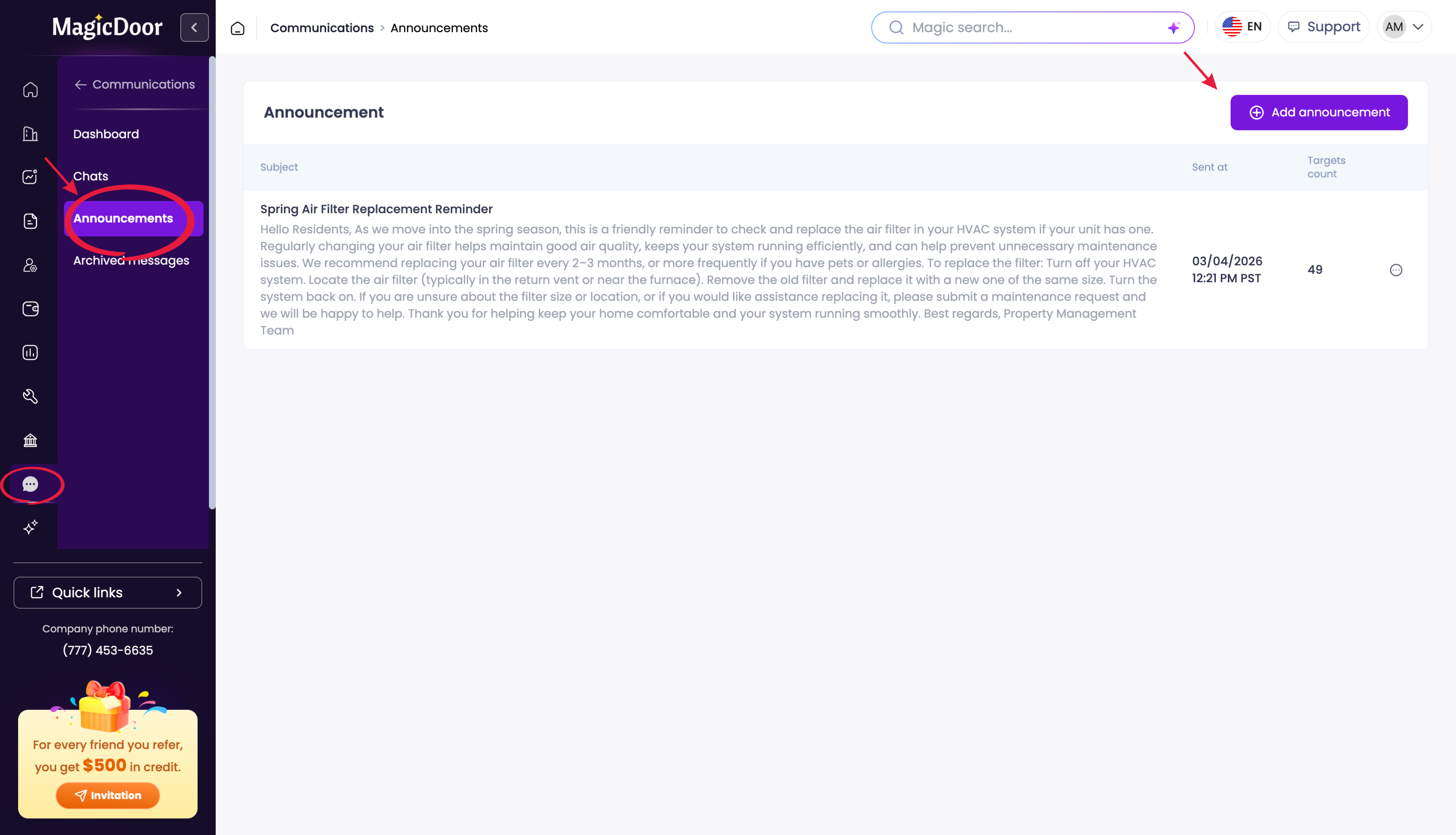
To begin, log into your MagicDoor account and locate the left-side navigation panel.
- Click Communications.
- Click Announcements.
Step 2: Add a New Announcement
On the Announcements screen, you can view all previously sent announcements. To create a new one, click Add Announcement in the upper right corner of the screen.
Step 3: Define Your Target Audience and Filters
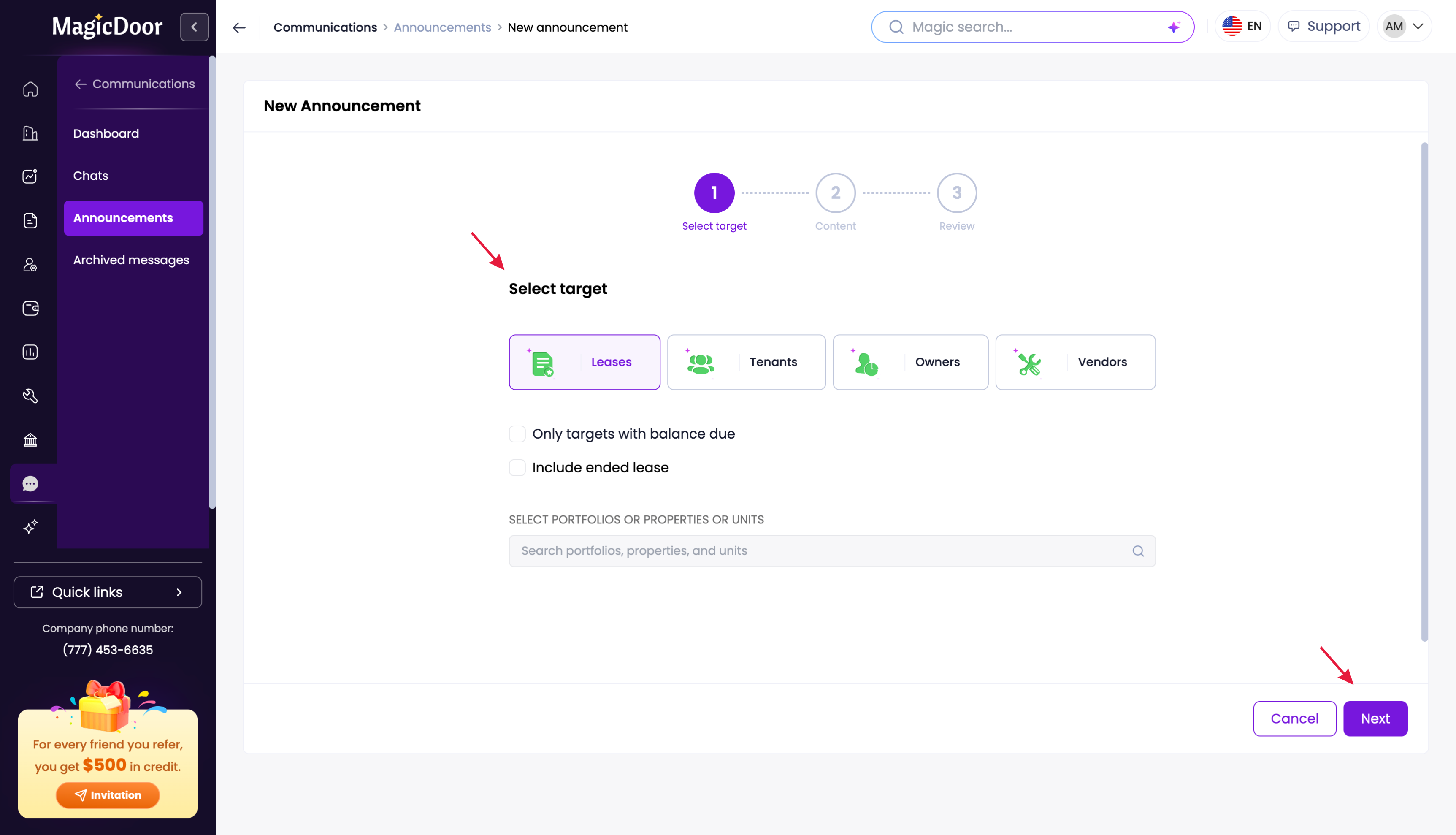
Before drafting your message, you need to define who will receive the announcement. Fill in the following:
- Target Type: choose whether the announcement is for a lease type, tenants, owners, or vendors
- Filters: narrow down recipients by selecting a specific Portfolio, Property, or Unit within your target type
You can scroll to find the appropriate filter or type it directly. Once your selection is complete, press Next.
Step 4: Draft Your Message and Attach Files
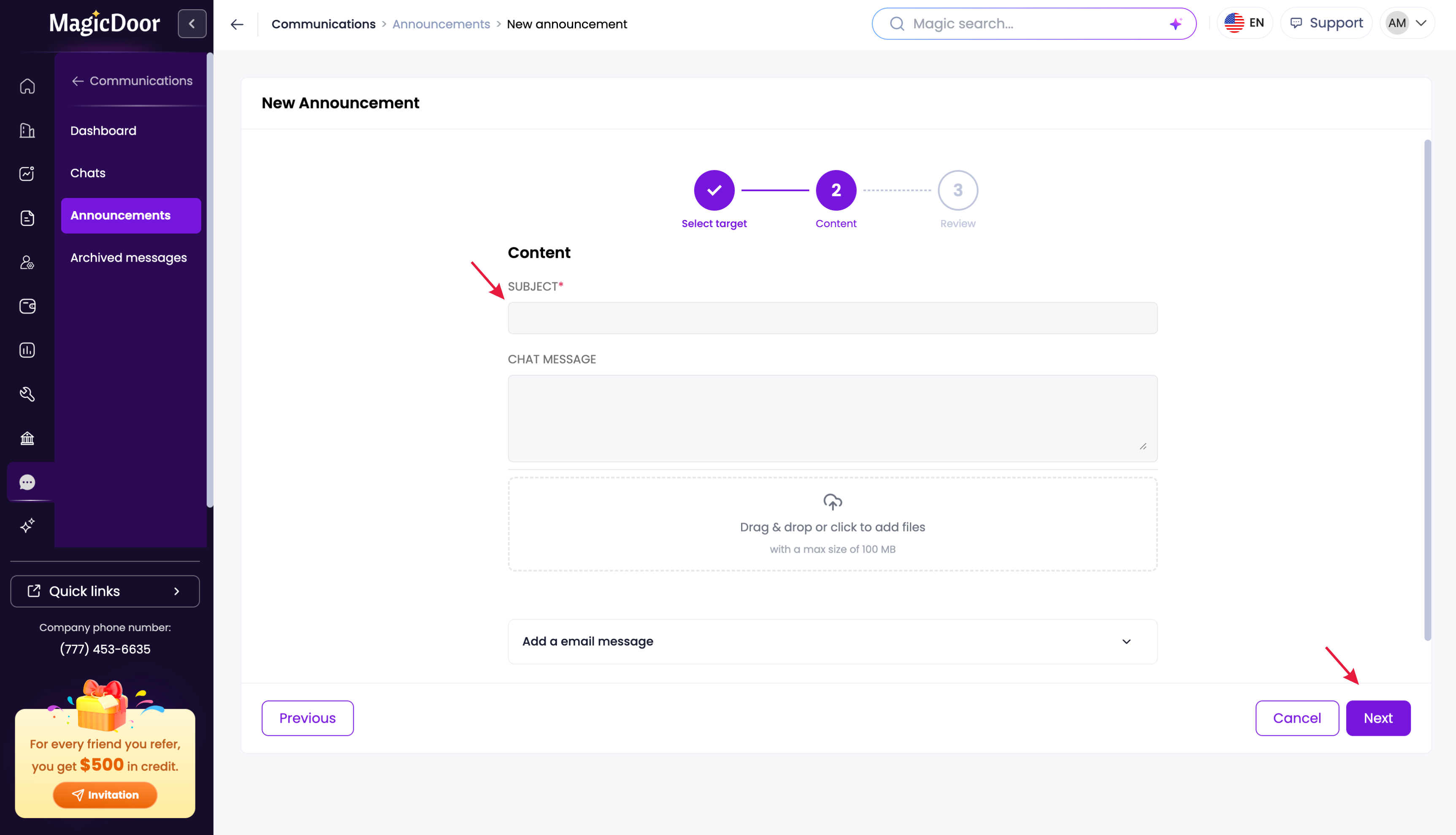
This is where you create the content of your announcement. Fill in the following:
- Message Type: choose to send as a Chat Message, an Email Message, or both
- Subject Line: enter a subject line for your announcement
- Message: type out your message content
- Files: drag and drop any photos or attachments you want to include
Once your message is ready, press Next.
Step 5: Review Your Announcement
Before sending, take a moment to review all the details for accuracy:
- Confirm the message type: chat, email, or both
- Check the subject line
- Verify the target type and recipient group
- Confirm any filters applied, such as a specific property or unit
Step 6: Send the Announcement
Once everything looks correct, press Finish to send. Your announcement will be delivered immediately to the selected recipients.
To review what was sent, return to the Announcements section and click on any announcement to view its full details.
Need Help With Announcements?
If you have questions about sending announcements or managing communications, our support team is here to help.
👉 Contact us anytime at support@magicdoor.com
📞 Call us at: (888) 887 - 8780 (9:00 AM – 5:00 PM PST)