



This help article explains how to set up and manage the Grace Balance feature in MagicDoor.
Inside, you'll find:
- Understanding what the Grace Balance is and how it works
- Navigating to the Grace Balance setting
- Setting a minimum unpaid balance threshold for late fees
- Using the Add New Override option to apply lease-specific grace balance values
Use this article as a reference when configuring late fee settings or adjusting thresholds for specific leases.
Step 1: Understand How Grace Balance Works
The Grace Balance is a configurable threshold that tells MagicDoor when to start applying late fees. It defines the maximum unpaid balance a tenant can carry on their ledger after the rent due date before the system automatically generates a late fee.
- If the outstanding balance is equal to or less than the grace balance amount, no late fee is applied.
- If the outstanding balance exceeds the grace balance, the late fee applies.
Most property managers set this to $0.00 by default, so any outstanding amount, even one cent, triggers a late fee. Raising the threshold can help avoid penalizing tenants for minor administrative discrepancies.
Step 2: Navigate to Grace Balance Settings
To configure the Grace Balance, go to the late fee settings in your account.
- Go to Settings.
- Select Late Fee Settings.
- Locate the Grace Balance option.
Step 3: Set Your Grace Balance Threshold
Enter the minimum unpaid balance amount below which late fees will not be applied.
- Type your desired threshold into the Grace Balance field.
- For example, entering $10.00 means a tenant owing $9.99 will not be charged a late fee, only balances above $10.00 will trigger one.
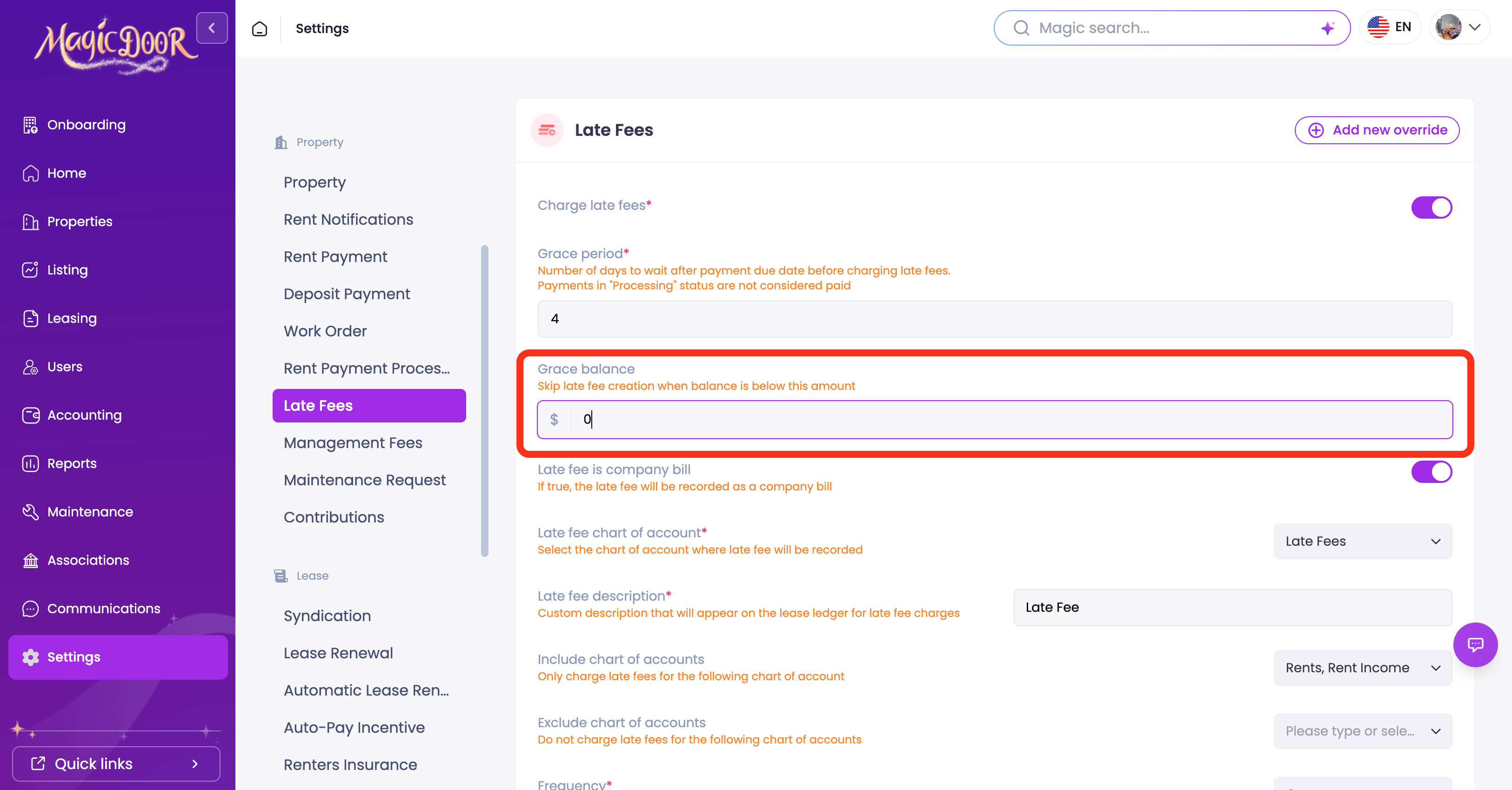
That’s it!
Step 4: Add a Lease-Specific Override (Optional)
If you want to apply a different grace balance to a specific lease without changing your general settings, use the override option.
- Click Add New Override in the top-right corner.
- Choose the setting you want to override.
- Under the Lease Override tab, select the lease you want to adjust and enter the grace balance value for that lease.
- Click Save.
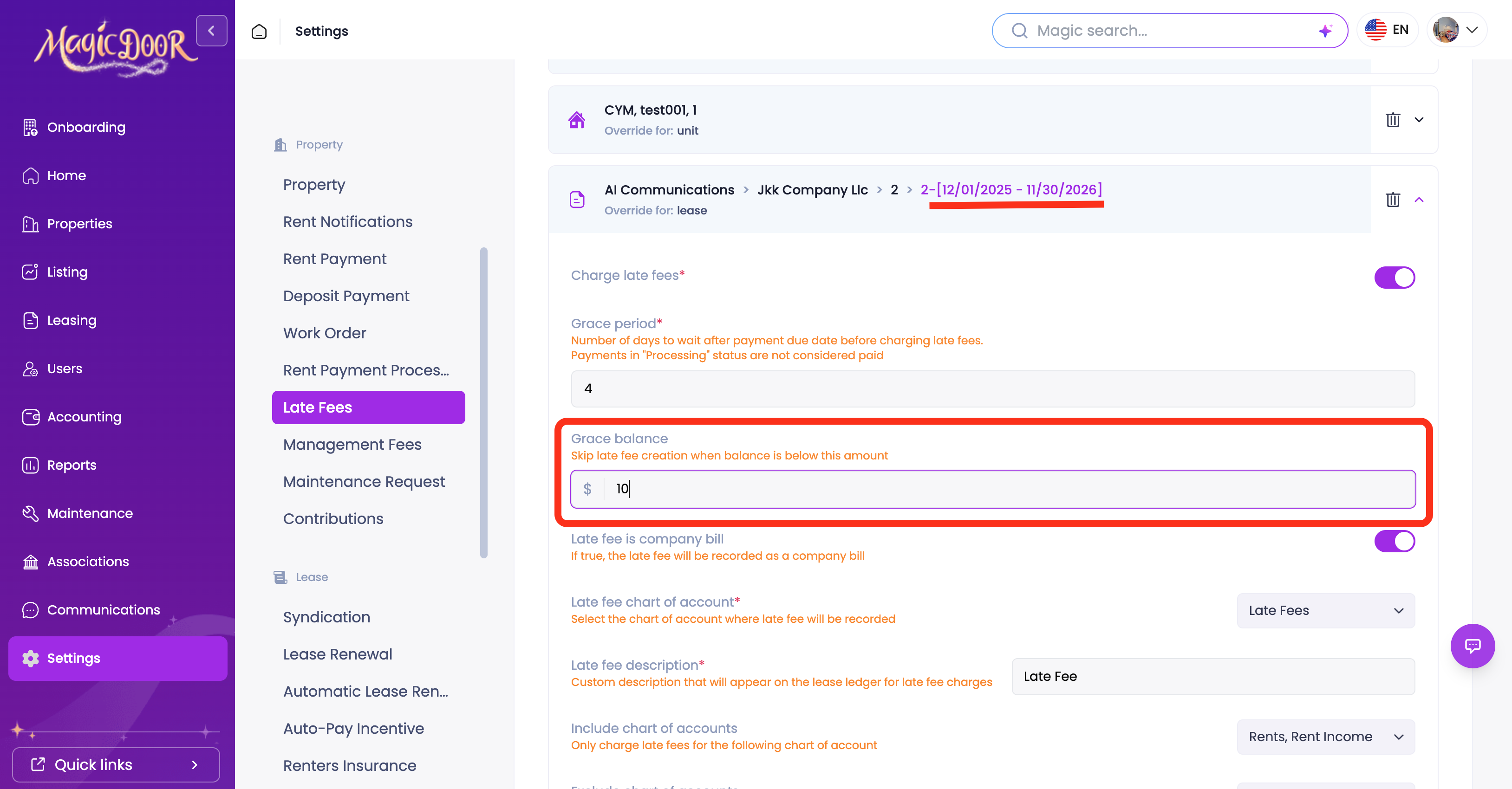
This allows you to keep your general settings intact while applying a custom threshold to individual leases where needed.
Need Help With Grace Balance?
If you have questions about grace balance or late fee settings, our support team is here to help.
👉 Contact us anytime at support@magicdoor.com
📞 Call us at: (888) 887 - 8780 (9:00 AM – 5:00 PM PST)