



This help article explains how to set up separate ledgers for multiple tenants sharing a unit in MagicDoor.
Inside, you'll find:
- Navigating to the Leases section for a unit
- Adding a new lease to create a separate ledger for an additional tenant
- Viewing multiple leases assigned to the same unit
Use this article as a reference when onboarding multiple tenants into a single unit and tracking rent, payments, and balances individually.
Step 1: Navigate to the Unit's Leases
To begin, locate the unit you want to manage from your property settings.
- Go to Property.
- Select Units.
- Click the Leases tab at the top of the page.
From here, you can see all leases currently assigned to the unit.
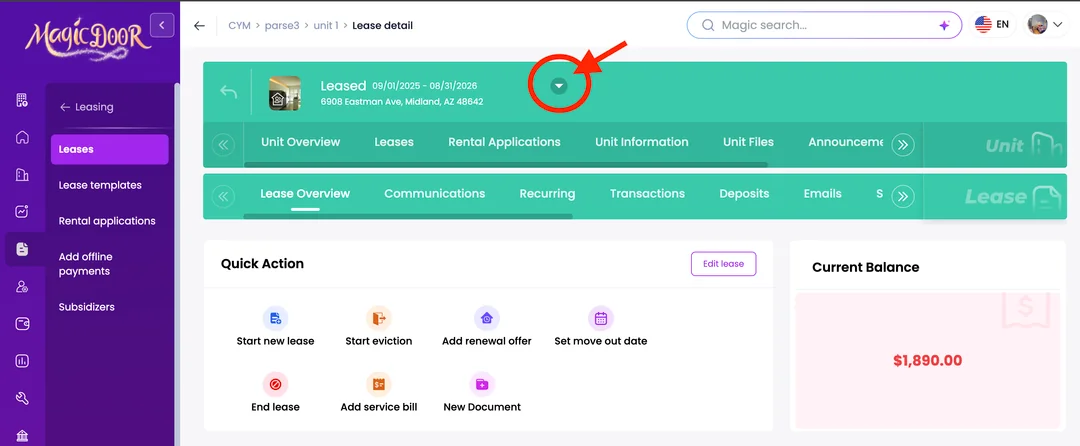
Step 2: Add a New Lease for the Additional Tenant
To assign a separate lease and ledger to an additional tenant in the same unit, create a new lease directly from this screen.
- Click Add New Lease.
- Complete the lease setup for the additional tenant.
Each lease creates its own ledger, allowing you to track rent, payments, and balances separately for each tenant in the unit.
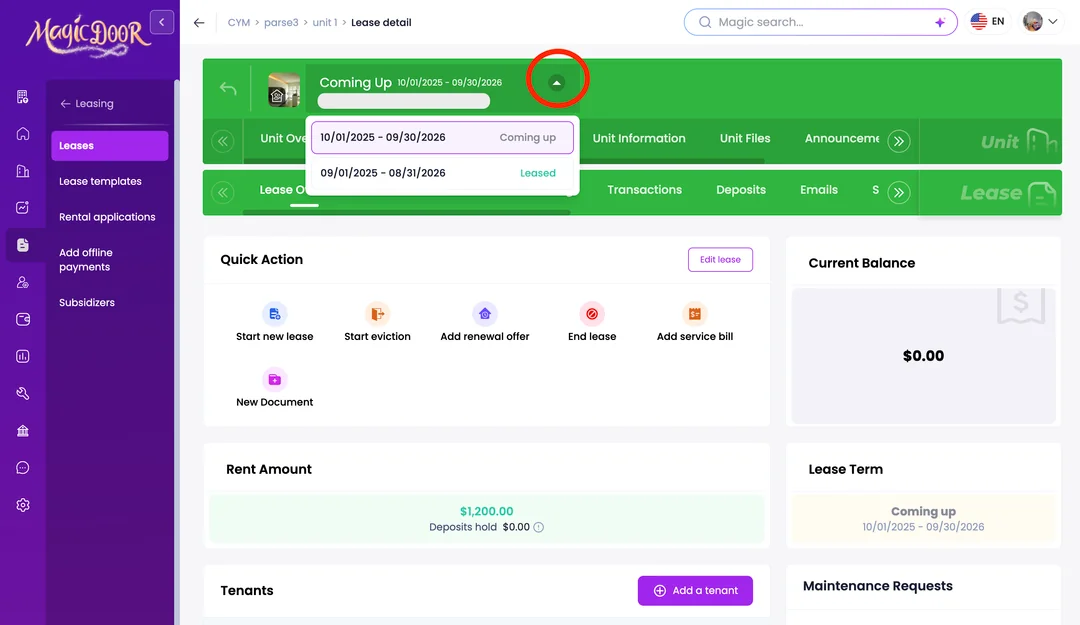
Step 3: View All Leases for the Unit
Once multiple leases have been added, you can view them all from the same screen.
- Click the chevron next to the unit to expand and view all leases assigned to it.
[image]
Need Help With Multiple Tenant Ledgers?
If you have questions about managing multiple tenants or separate ledgers, our support team is here to help.
👉 Contact us anytime at support@magicdoor.com
📞 Call us at: (888) 887 - 8780 (9:00 AM – 5:00 PM PST)