



This help article explains how to configure rental application fee settings to control your net profit in MagicDoor.
Inside, you'll find:
- Understanding the two application fee settings
- How the processing fee toggle affects applicant cost and PM profit
- A side-by-side comparison of both toggle strategies
- Choosing the right setting for your pricing approach
Use this article as a reference when setting up your rental application process or adjusting your fee strategy.
Step 1: Understand the Two Fee Settings
When configuring your application process, there are two settings that control how fees work.
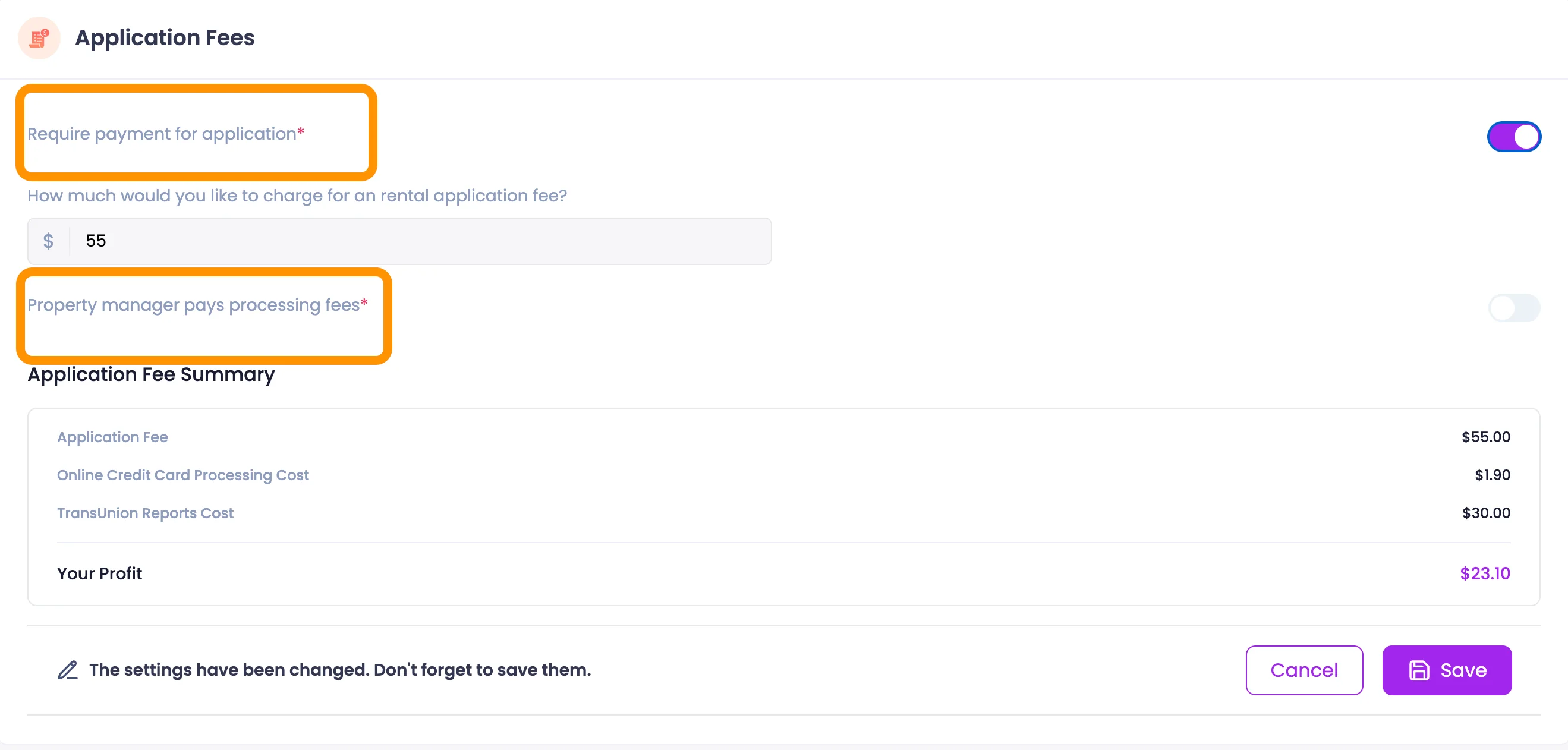
Setting 1: Require payment for the application
This determines whether an applicant must pay the application fee before submitting their rental application.
Setting 2: Property manager pays processing fees
This determines who covers the Stripe credit card transaction fee, the property manager or the applicant. This setting directly affects your net profit on every application.
Step 2: Choose Your Fee Strategy
How you set the Property Manager Pays Processing Fees toggle determines your final net profit per application. There are two approaches:
To keep the fee flat and predictable for the applicant:
- Set PM Pays Processing Fees to ON
- The PM absorbs the transaction fee
- The applicant pays exactly your advertised price
- Best for applicant-friendly pricing
To maximize your net profit on every application:
- Set PM Pays Processing Fees to OFF
- The applicant pays the transaction fee on top of the set fee
- The PM keeps the full base amount minus the screening cost
- Best for profit-focused pricing
Step 3: Review the Numbers Before Deciding
Using an example with a $55 application fee and a $30 screening cost, here is how each setting plays out:
Toggle ON - PM pays the processing fee:
- Applicant pays: $55.00 (advertised price, no surprises)
- PM net profit: approximately $23.10
- The PM absorbs the transaction fee of approximately $1.90
Toggle OFF - Applicant pays the processing fee:
- Applicant pays: $56.95 (base fee + transaction fee)
- PM net profit: approximately $25.00
- The applicant covers the transaction fee of approximately $1.95
The difference per application is small, but across a high volume of applications, it adds up meaningfully.
Need Help With Application Fee Settings?
If you have questions about rental application fees or payment settings, our support team is here to help.
👉 Contact us anytime at support@magicdoor.com
📞 Call us at: (888) 887 - 8780 (9:00 AM – 5:00 PM PST)